Writing Data Tasks#
Data Tasks are at the core of DUFT, can can be used to transform, send, download or otherwise manipulate data; but they can also be used for general tasks, including updating DUFT Config.
Data Tasks are written in Python — either as plain Python (py) scripts or Jupyter Notebooks (.ipynb). They are stored in DUFT Config, either in the apps or system directory — for most cases, the system directory is the right place. Use apps if you have multiple apps. They must also be declared in data_tasks.json, otherwise the system won’t be able to find them.
Writing a Data Task#
This explanation shows how to write a Data Task in Jupyter Notebooks. The process is similar for non-Jupyter notebooks, see an example of sample_task.py for a non-Notebook file.
Note
When you write and test Data Tasks, do this in the same virtual environment as DUFT Server. This ensures the Data Task Tools, which are part of DUFT Server, are available. The Data Task Tools are required to interact with DUFT Server, and provide feedback messages to the end user in the UI.
In this article, the implementer is the person writing the Data Task.
Before you begin#
Before you begin, you need to understand how data tasks work.
Data Tasks run within the same venv as DUFT Server, but they are executed in a separate process (not just a separate thread). Data Tasks are designed to be able to run independently of DUFT Server.
However, because Data Tasks do need to communicate with DUFT Server (for example to recieve parameters or update progress), they need to run within the same
venvas DUFT Server, as they need to call certain DUFT Server APIs.The loose coupling though enables the implementer to develop Data Tasks within Visual Studio Code, run notebooks and test scripts without requiring DUFT Server to run, as long as they run in the same venv. This is a major advantage, as it enables the full set of tools (e.g. VS Code Cell Debugging) to be available.
Data Tasks can receive parameters. Parameters can be set in the
data_tasks.jsonfile, and some parameters may be set by the user before running the Data Task. The implementer needs to specify which parameters are expected, and validate their correctness. Parameters can control how the Data Task operates (but not on which databases it should operate).Data Tasks can also receive one or more data connections, which are specified in the
data_connections.jsonfile, and may contain user-configurable parameters, e.g. the name of a database server or user credentials. Connection-specific parameters should always be passed through data connections, and not through parameters.
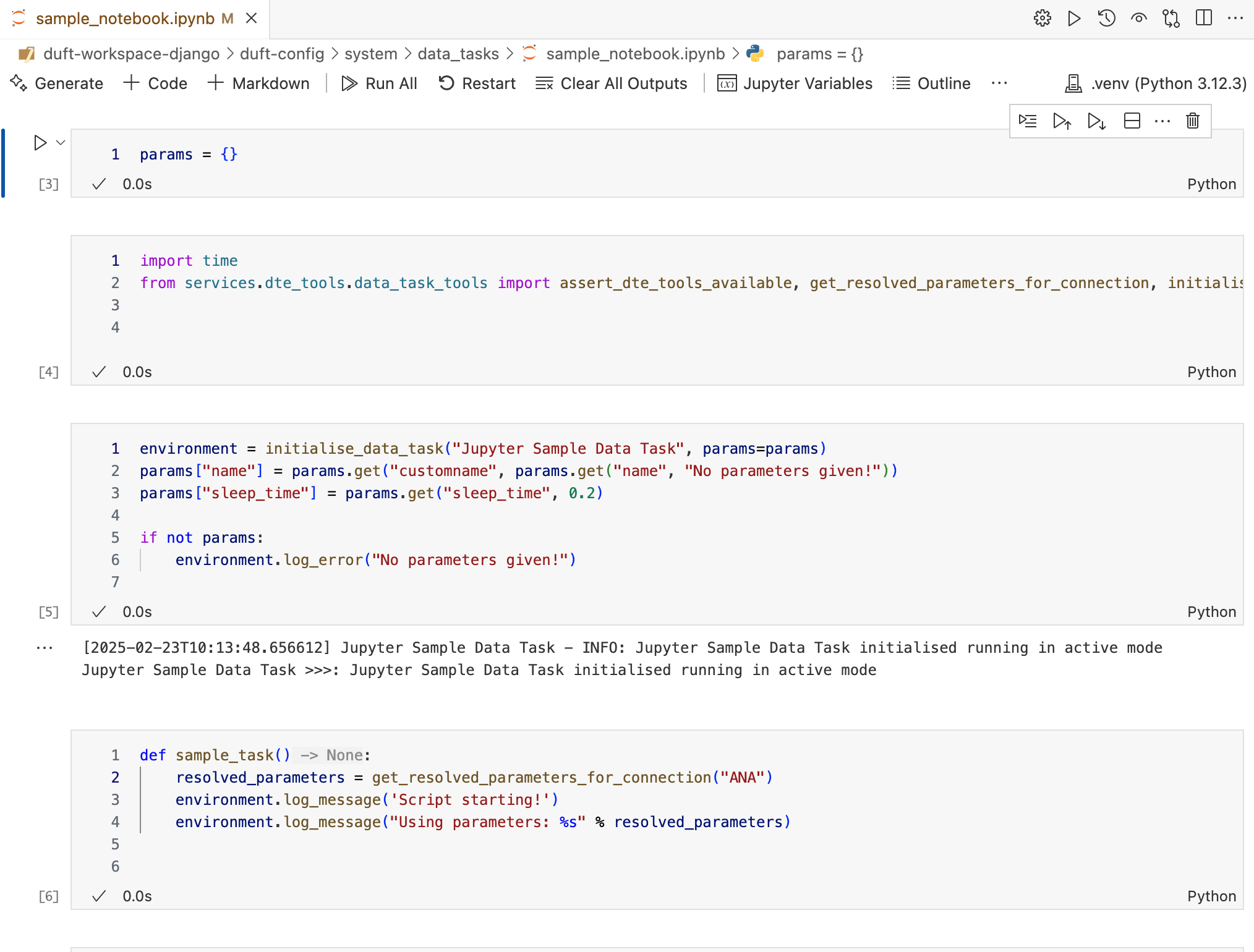
Creating a Data Task in a Notebook#
Start by creating an empty notebook, and place it in the
duft-config/system/data_tasksdirectory. Give it a name.Insert your first cell — this must be a code cell and must be the following:
params = {}
Inserting this cell guarantees that DUFT Server can pass the parameters to this notebook. DUFT Server expects this to be the first cell.
Add another code cell, and add the following:
from services.dte_tools.data_task_tools import assert_dte_tools_available, get_resolved_parameters_for_connection, initialise_data_task
This loads the DUFT Data Task Engine Tools. This command only works if your VS Code is set up to run the Data Task in the same
venvas DUFT Server, and if you have properly run the first_run command, as it requiressitecustomizer.pyto be installed in your Python package library.Create a new code cell, and add the following level:
environment = initialise_data_task("Jupyter Sample Data Task", params=params)
This initialises the Data Task within DUFT Server. You pass the parameters so you can easily verify whether you received the correct ones, they are for debugging only. The function returns a
DataTaskEnvironmentwhich you can use to interact with DUFT Server. Initialising a Data Task also records a log entry in the logger database.Handle the parameters. You may not receive any, and when you are creating the Data Task in VS Code and want to test your code, you have to simulate them. That can be done as follows:
params["name"] = params.get("name", "No name parameter given!")
params["sleep_time"] = params.get("sleep_time", 0.2)
In this example, you will check for the existence of a
nameandsleep_timeparameter, if none are given, you provide default values. Both are configurable throughdata_tasks.json, but when you are developing the Data Task, they are not passed fromdata_tasks.json, so you need to provide default values.Handle the Data Connections. You may receive any number of Data Connections, as specified in the
data_tasks.jsonfile. As implementer, you must know in advance (i.e. you define) which Data Connections you need. For example, when you write this Data Task you may decide you need access to a source and an analysis database, identified bySOURCEandANA. You can retrieve their connection settings as follows:resolved_ana_parameters = get_resolved_parameters_for_connection("ANA") resolved_source_parameters = get_resolved_parameters_for_connection("SOURCE")
This will give you a set of parameters. For example, for the default Wakanda
ANAconnection, they may look as follows:{'server': '127.0.0.1', 'username': 'user', 'password': 'mysecretword', 'port': '5432', 'database': 'analysis', 'sqlite3file': 'wakanda.sqlite', 'type': 'sqlite3'}
The values of the parameters may have been customised by the user (and they are stored in
duft-config/user/config.json). You should use these values to create your data connection to a database. How to connect is up to you — the implementer — you now have all the information you need to conduct the actual data work.To test that everything works, you can use the following code in a new cell:
def sample_task():
 resolved_data_connection_parameters = get_resolved_parameters_for_connection("ANA")
 environment.log_message('Script starting!')
 environment.log_message("Using data connection: %s" % resolved_data_connection_parameters)
 environment.log_message("Using data parameters: %s" % params)
This code outputs the Data Connections and parameters and logs it. It will be visible when you run the notebook.
To run it, add the following in a new cell:
assert_dte_tools_available()
sample_task()
The first assertion will assert your environment is working as expected. The second line will execute the function defined in the previous cell, and show the parameter and connection information.
You can now write the specific code for your Data Task, for example, using Pandas to do data transformation from source to analysis databases. They can also perform other tasks however, such as uploading a file to a server, download data from an API — anything.
You should provide frequent updates through the DataTaskEnvironment’s log mechanism, such log messes are also displayed in the UI. For example:
environment.log_message('Reading Source Data')
...
environment.log_message('Transforming dim_client')
...
environment.log_message('Storing data into Analysis database')
...
environment.log_message('Data Analysis Completed.')
Errors can also be logged:
environment.log_error(f"Unable to connect to the source database. {resolved_ana_parameters['server_name']}")
Avoid Using Loops with Updates
Due to a limitation of the Python Notebook runner, avoid relying in feedback messages during while/for loops. The feedback will only be emitted after the contents of a cell has been completed. So a message inside a while/for loop will not be broadcast until the cell has completed.
It is therefore also recommend to break smaller pieces of work into independent cells.
Configuring the Data Task and its Data Connections#
Before the Data Task can be used, it must be configured. This is done in duft-config/system/data_tasks.json. In addition, you may have to configure one or more Data Connections.
Data Task Properties#
For Data Tasks, you can define the following properties:
Parameter |
Description |
|---|---|
|
The ID by which the Data Task will be identified, for example, EPMS_ETL. |
|
The human-friendly name for the Data Task, for example, EPMS Data Preparation |
|
The description for the Data Task, which may be shown in the UI before the Data Task runs as a confirmation. |
|
The Python script or Jupyter notebook. The file must reside in the |
|
Not currently implemented. |
|
Indicates whether the Data Task will be executed from a directory outside of |
|
An array of Data Connection IDs to be used by the Data Tasks. Each Data Connection must be specified in the |
|
An array of parameters supported by the Data Task. See below for a description. |
Here is an example of a basic data_tasks.json file:
"dataTasks": [
	{
		"id": "EPMS_ETL",
		"name": "EPMS ETL",
		"description": "Runs the daily EPMS Data Analysis Scripts",
		"pythonFile": "EPMS ETL.ipynb",
		"dataConnections": [
			"ANA",
			"EPMS"
		],
		"supportedParameters": {
			"name": {
				"title": "Name",
				"description": "The name of the parameter.",
				"defaultValue": "silent",
				"allowOverride": true,
				"promptUser": false
			},
			"value": {
				"title": "Value",
				"description": "The value of the parameter.",
				"defaultValue": "yes",
				"allowOverride": true,
				"promptUser": false
			}
		}
	},
]
Configuring Parameters#
Within the supportedParameters section you can specify which parameters are to be used by the Data Task.
Parameter |
Description |
|---|---|
name |
Give the parameter a name by which to identify the parameter. |
|
A title for the parameter. |
|
A description for the parameter. |
|
The value to be set for the parameter. If users cannot override the parameter, then this is the value passed to the Data Task. |
|
Specifies whether the value of this parameter can be changed from |
|
Not currently implemented. |
Example of a Data Task specification#
Here is an example of how to use parameters with the Update Data Task, which updates a duft-config directory from a GitHub repo — i.e. pulling the latest dashboards and Data Tasks from a remote server:
{
	"id": "UPDATE",
	"name": "DUFT Report Update",
	"description": "Updates the DUFT reports to the latest version. An Internet connection is required",
	"pythonFile": "update.py",
	"hideInUI": true,
	"executeFromRoot": true,
	"supportedParameters": {
		"repo_url": {
			"title": "Repository URL",
			"description": "The URL of the git repository.",
			"defaultValue": "https://github.com/UCSF-IGHS/duft-config",
			"allowOverride": false,
			"promptUser": false
		},
		"save_path": {
			"title": "Save Path",
			"description": "The path where the data will be saved.",
			"defaultValue": "",
			"allowOverride": false,
			"promptUser": false
		},
		"final_repo_name": {
			"title": "Final Repository Name",
			"description": "The final name of the repository.",
			"defaultValue": "duft-config",
			"allowOverride": false,
			"promptUser": false
		},
		"branch": {
			"title": "Branch",
			"description": "The branch of the repository to use.",
			"defaultValue": "namibia",
			"allowOverride": false,
			"promptUser": false
		}
	}
},
As you can see, the Data Task (update.py) expects a repository URL, a save path, a final repo name and a branch. The Update Data Task pulls the duft-config repo’s namibia branch, and places it in the root of DUFT Server using the duft-config name. This task is executed from the root, because the task will delete the existing duft-config (which includes update.py and would therefore fail), so the update.py script is copied to the directory above duft-config first for safe execution.